Datasets as Input Types
Overview:
There are instances when custom input types are insufficient, and you need input types such as checklists, tables with rows and columns, or dynamic options in a radiogroup. Such input types have to be based on datasets. These datasets can be created within the model or be imported from a database, a spreadsheet, or some other external data source.
Pre-requisites:
Before diving into this section, it’s highly recommended to complete the guided tour. Additionally, you should have a solid understanding of custom input types and datasets, along with basic knowledge of repeating structures.
Basic setup
First let’s explore the basic idea of what is needed to turn a dataset into a question. There are basically two ways:
The easy way
…where a dataset is a variable within the same node
- Create a dataset by some means.
- In the same node, create a checklist or table using that very dataset.
Use the same name as the dataset you’re using, and choose the same dataset type from the dropdown to the right of the name field. The same variable will be used for the checklist or table. - Make sure user input does not get lost because of navigating back and forth:
Use ‘Remember dataset’ for checklists; and ‘Key value’ for tables. - Double-check that the dataset gets created before it is used in the interface:
The createdataset rule (or other means) should precede the interface.
The more detached way
- Create a dataset in one node
- Create a checklist or table in another node.
Choose the same structure from the dropdown to the right of the name field, but choose another name. A new variable will be created for the checklist or table. - Because you’re using a new variable, you have to prime that checklist or table to the actual dataset.
This can be done either by assignment:my_table := other_node.my_dataset,
Or by initvar:initvar(^my_table, other_node.my_dataset)- if the source dataset does not change within the case. - Make sure user input does not get lost because of navigating back and forth:
Use ‘Remember dataset’ for checklists; and ‘Key value’ for tables. - Double-check that the assignment or initvar() call precedes the checklist or table (‘interface’).
A checklist example
In the following example, we will ask for three names to be entered, turn that into a dataset and then present this dataset in a checklist.
Setting up the dataset
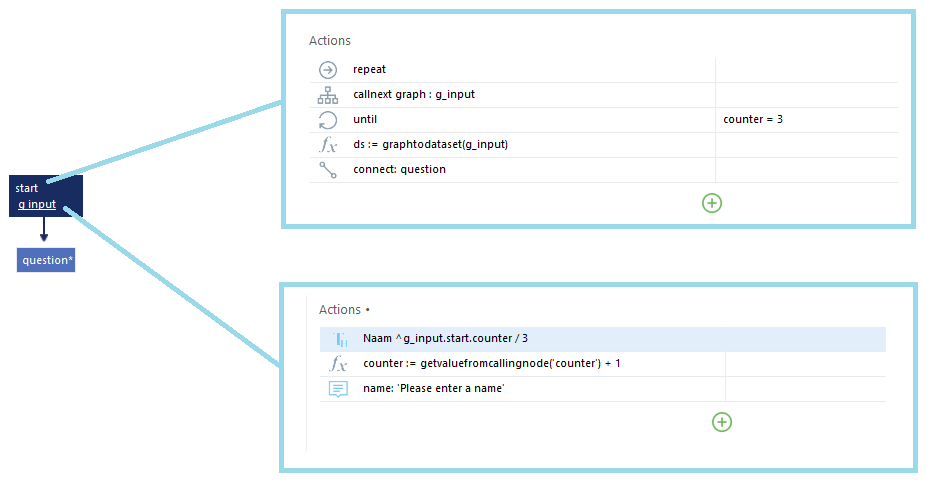
To illustrate, let’s create a simple model that repeats a question multiple times, stores the answers in a dataset, and then uses that dataset to ask the user another question.
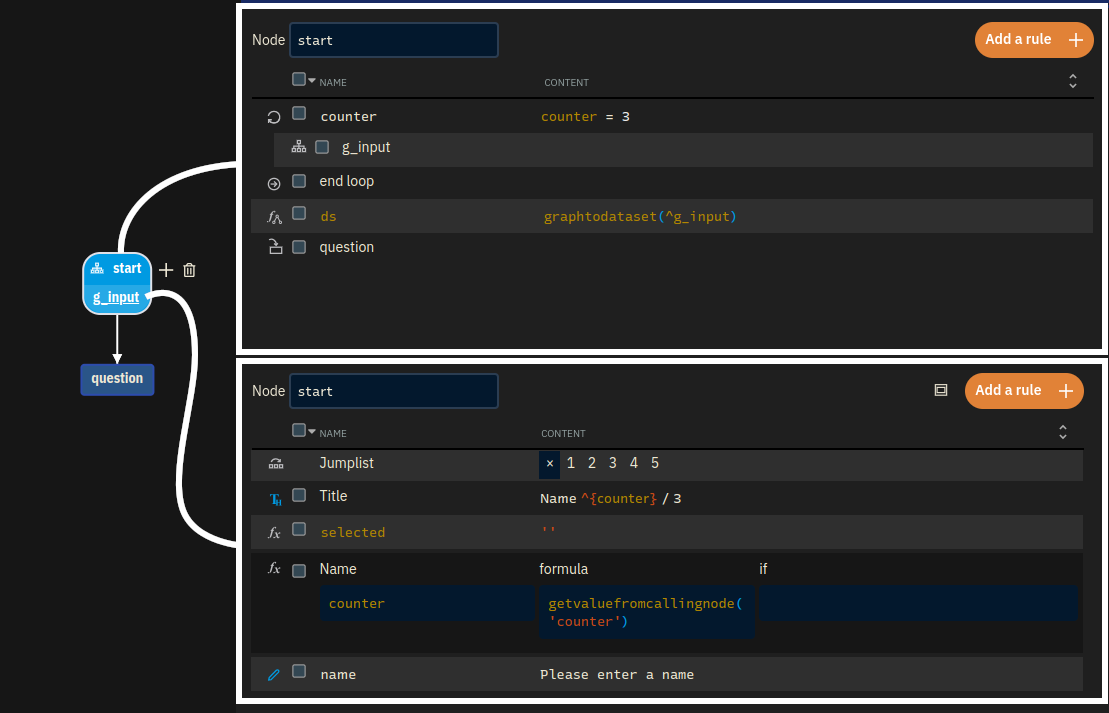
- In the graph
main:- Add a graph (
g_input) to yourstartnode. - Repeat the graph three times.
- Add a graph (
- Enter graph
g_input, nodestart:- Add a question, called
name, to ask for someone’s name. - Add a formula called
selected, set just to the empty string ('').
This will be used later on for the checkboxes. - Optionally:
- Add a formula
counter, set togetvaluefromcallingnode('counter').
This makes available the current index in the loop. - In the title, use the text “Name ^{counter} / 3”.
- Add a formula
- Add a question, called
- Back in graph
main:- Convert the graph into a dataset in
main.startusing thegraphtodataset('g_input')function.
- Convert the graph into a dataset in
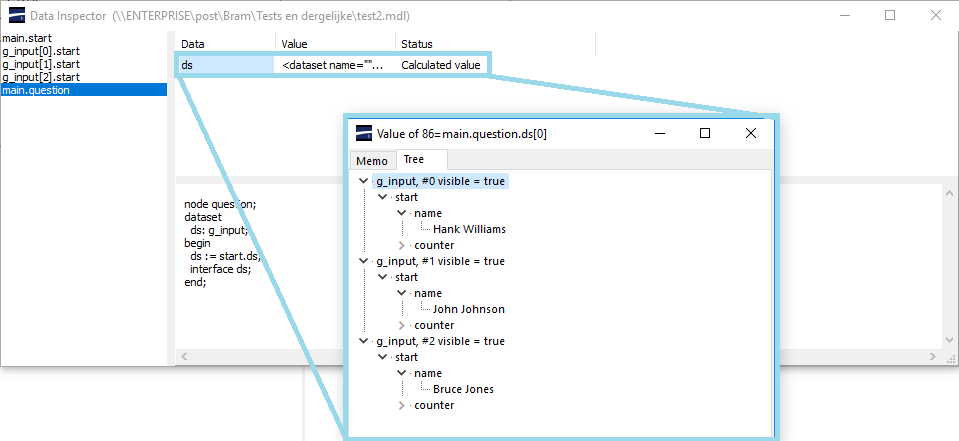
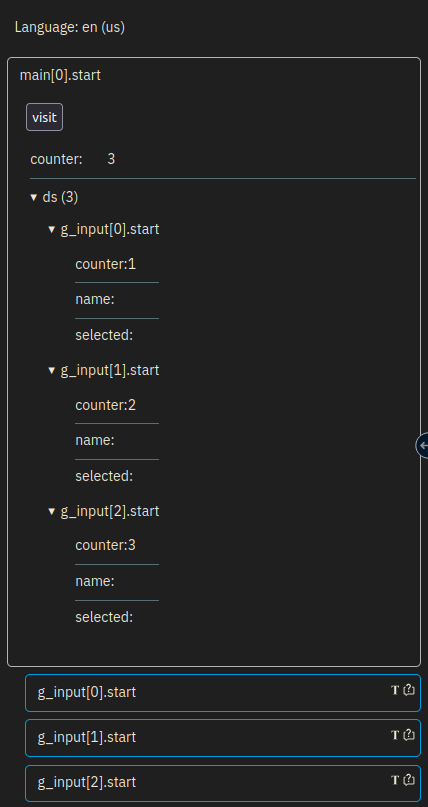
The model now gathers some names from the user and stores them in a dataset. You can check this by running the model, putting in some names and then use the data inspector to check if everything is alright. When you double-click the dataset, it should look similar to the picture below:
Adding the Question:
Now, let’s enable user selection from the entered names.
-
Import the Dataset:
- Create a new node, called
question. - Create a new dataset formula, called
ds, and setstart.dsas the formula value.
- Create a new node, called
-
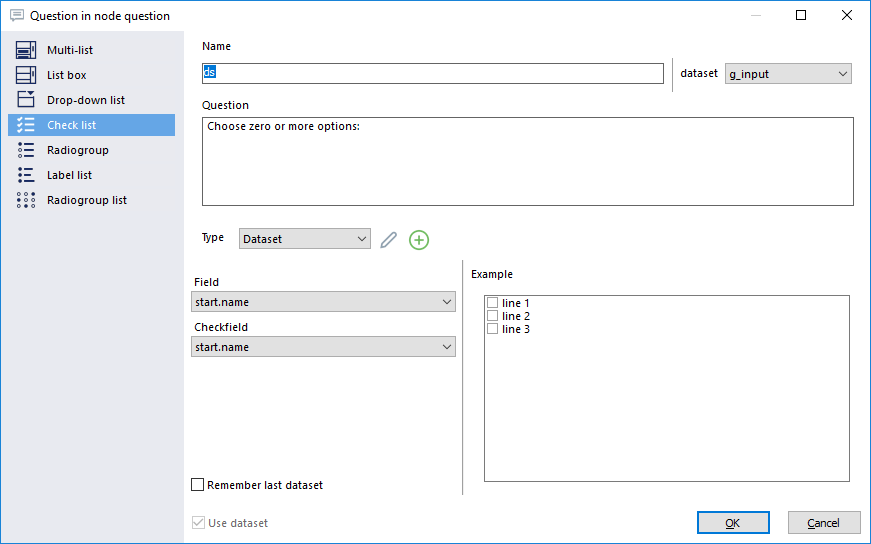
Add the checklist itself:
- Add a question.
- In the question settings, check the ‘Use dataset’ box and enter
ds(the dataset name). - Choose the checklist, which allows users to select multiple options.
- Ensure the dataset type is set to
g_input - Use
start.namefor the field andstart.selectedfor the check field.
- In the question settings, check the ‘Use dataset’ box and enter
- Add a question.
Running and checking the model
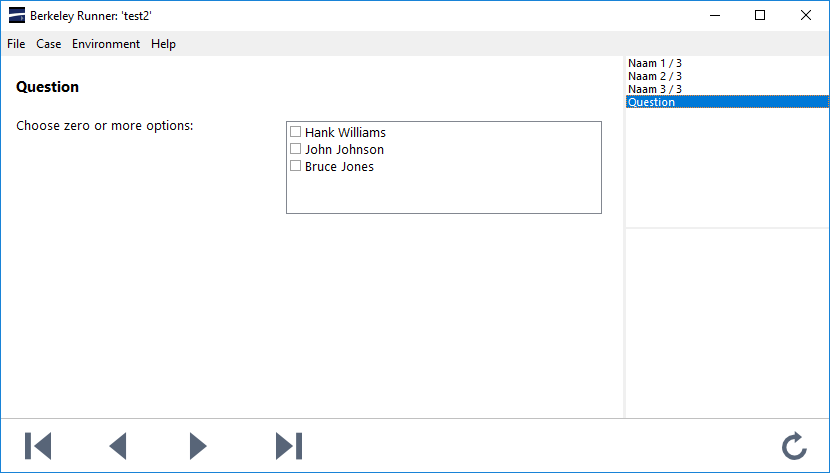
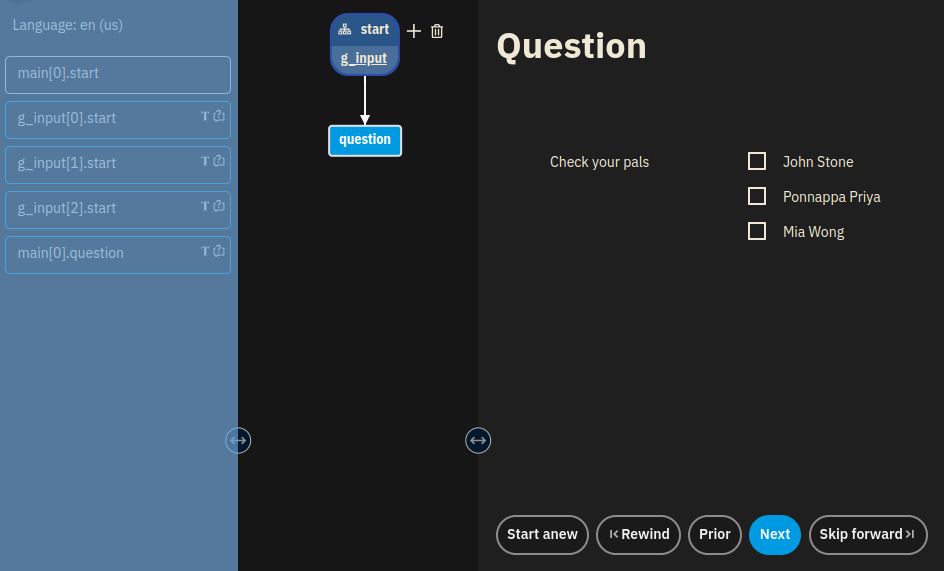
If you’ve done everything correctly, running the model should yield the following screen. Note that the names are entered in the previous nodes, and will probably differ from your model.
Checklist versus Radio group or Drop-down
While checklists may seem quite similar to radio groups or drop-downs, there are structural differences in xxllnc Expertsystemen between checklists on the one hand, and radio groups or drop-downs on the other.
- Checklist: Requires one dataset. Uses a designated field (‘check field’) to store the selection.
- Radio group or Drop-down List: Require two datasets. The source dataset (
main.start.ds) is used to structure the question, while the question itself is a different dataset (e.g.,ds2), storing a subset of the source equal to the selection.
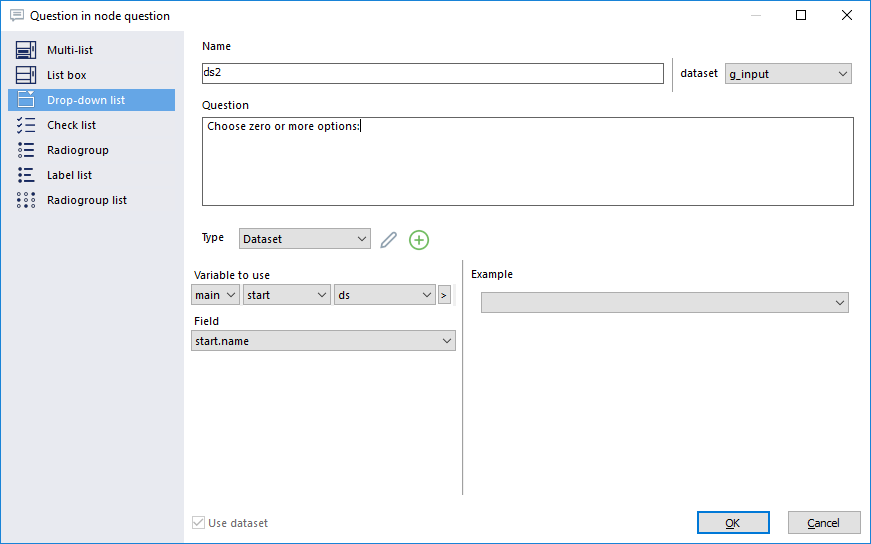
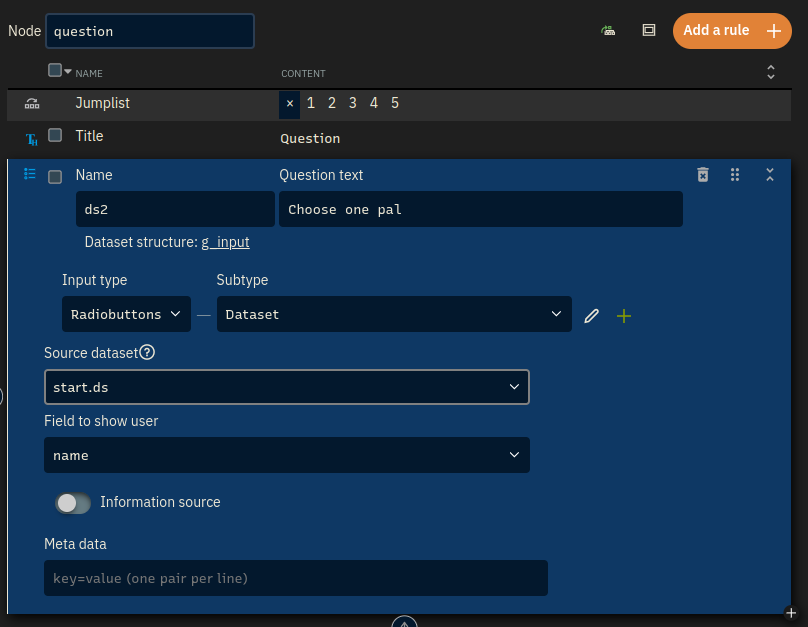
Note that if you want to see the results, you’ll need to refer to the question dataset (main.question.ds2). The source dataset (main.start.ds) remains unchanged.
Remember dataset
Beware when you use a dynamic dataset for your checklist or grid, such as one based on earlier answers.
- Dynamic: Based on earlier (looped) questions or read from an external source succeptible to change (by the model itself or by something else).
- Static: Created by
createdataset, read from source such as a XML file or spreadsheet, etc. that does not change.
If the user then jumps back and causes additions or deletions from the original dataset, the values given by the user can get lost or misplaced.
This can be solved by matching on one field that uniquely identifies a particular item: a so-called key value.
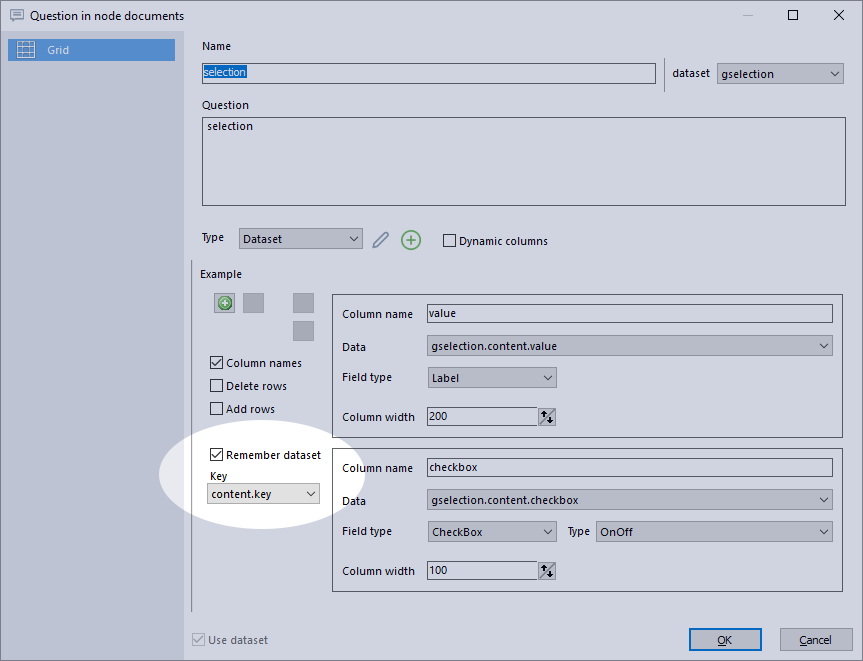
In a checklist, the value shown to the user will be used as the key value—it should be unique anyway for the user to make up their mind. In a checklist, ticking the checkbox labelled ‘Remember dataset’ is therefore enough to ensure that the old selection and values match with the new dataset.
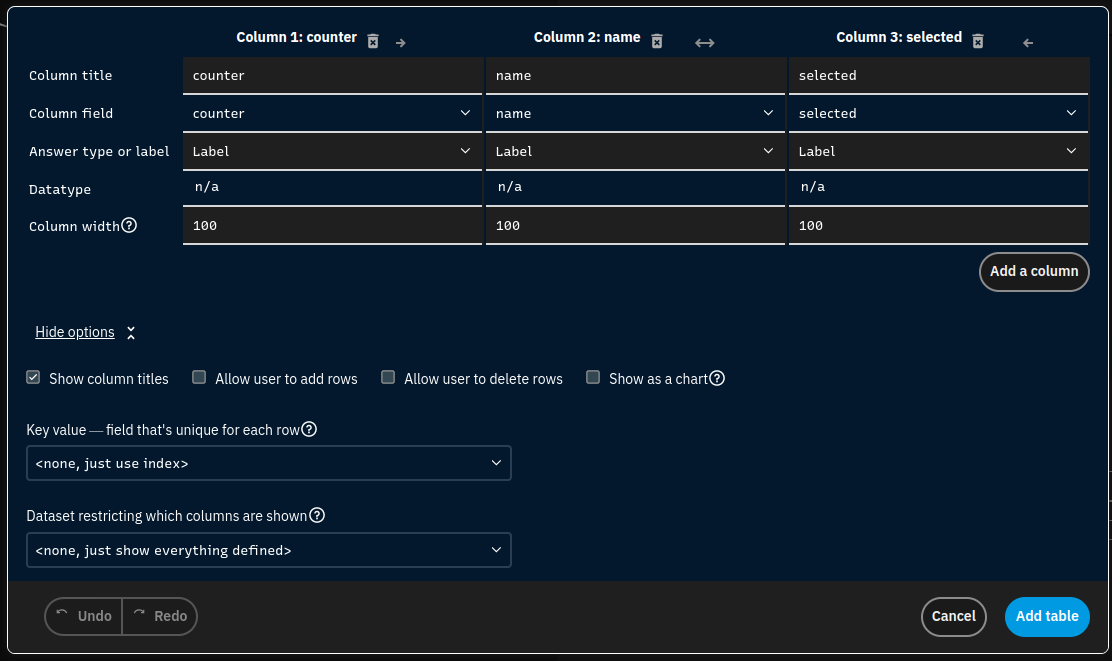
In a grid (table) however, we will need to specify which of the dataset fields constitutes our key value:
Grids / Tables
A grid presents information in a table, and if needed, allows users to edit this information. Furthermore, you can present the user with an empty grid (table) and ask them to fill in the required data, adding rows.
We incorporated grids into the tutorial on data sets. If you are familiar with datasets and you want to jump straight into the action, please see Using the dataset II under ‘Presenting the selection’.
Dynamic columns, dynamically hiding columns of the grid, is explained here.